How to Organize Time Tracking With Categories, Subcategories & Groups
Flat task lists don't work for real life. Use categories, subcategories, and activity groups to organize your time tracking — simple daily use, rich analysis. Free time tracker app.
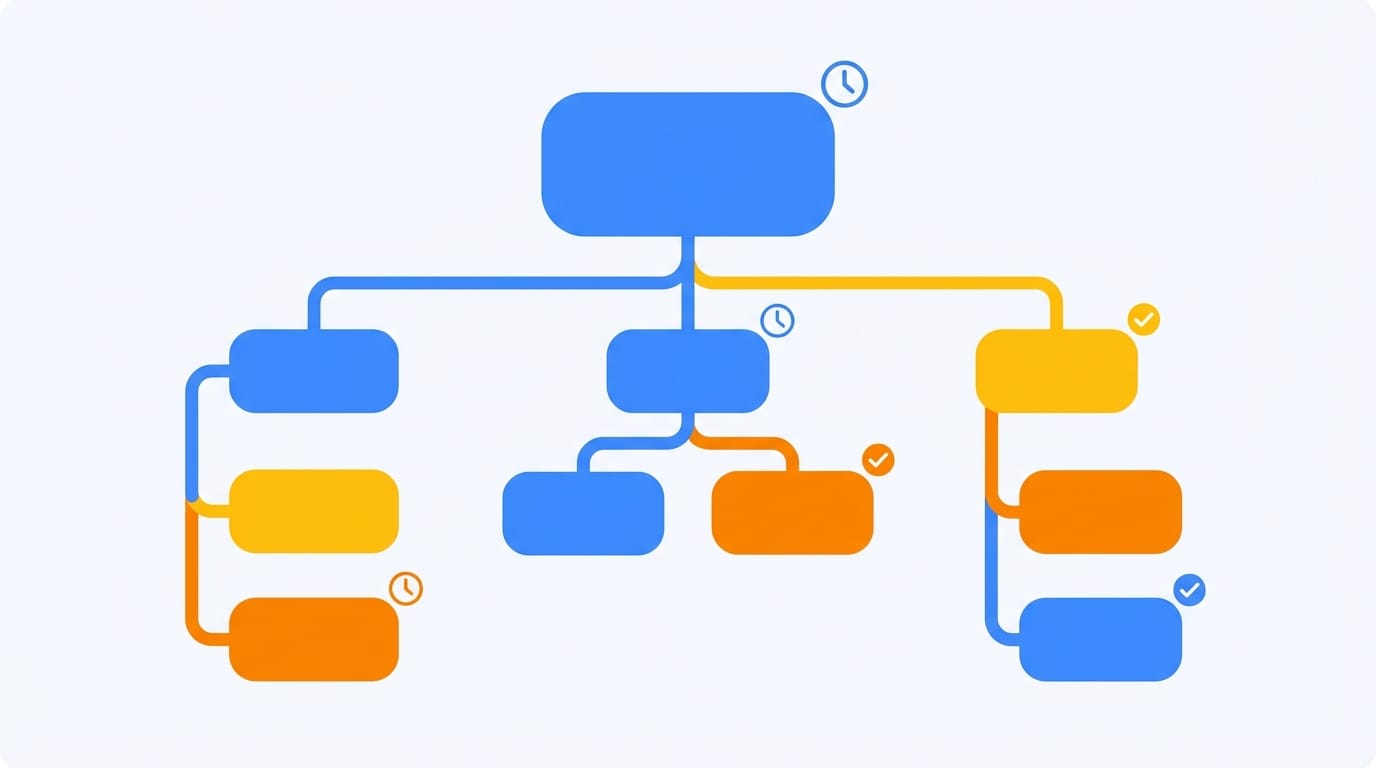
Open any popular time tracker and you'll find the same thing: a flat list of tasks. "Work." "Gym." "Reading." It's fine when you're tracking three things. But real life isn't flat — and if you've ever asked yourself "where does my time go?", a flat list won't give you the answer.
Your "Fitness" isn't one activity — it's gym sessions, morning runs, yoga classes, and weekend hikes. Your "Work" includes deep focus, meetings, emails, and that side project you keep meaning to get back to. A flat list forces you to choose: keep it vague and lose detail, or list everything and drown in clutter. For personal time tracking, neither option works.
There's a better way. Nested activities let you organize your time in a tree — just like your life actually works — while keeping daily tracking dead simple.
The Problem With Flat Task Lists
Let's say you want to track your fitness. In a typical time tracker, you have two options:
Option A: One big category. You create "Fitness" and log everything under it. Simple to track, but useless for analysis. You can't tell if you're doing enough cardio vs. strength training. You can't set a goal for yoga specifically.
Option B: Separate activities for everything. You create "Gym — Strength," "Gym — Cardio," "Running," "Yoga," "Hiking." Now your activity list has 5 entries just for fitness, plus another 20 for work, learning, family, and everything else. Good luck finding the right one when you're about to start a workout.
Neither option works well. You need hierarchy.
How Subcategories and Activity Groups Work
In timetracker.live, activities can have children. And those children can have children too — as deep as you need. Here's what a real setup might look like:
🏋️ Fitness
├── Gym
│   ├── Strength Training
│   └── Cardio
├── Running
├── Yoga
└── Hiking
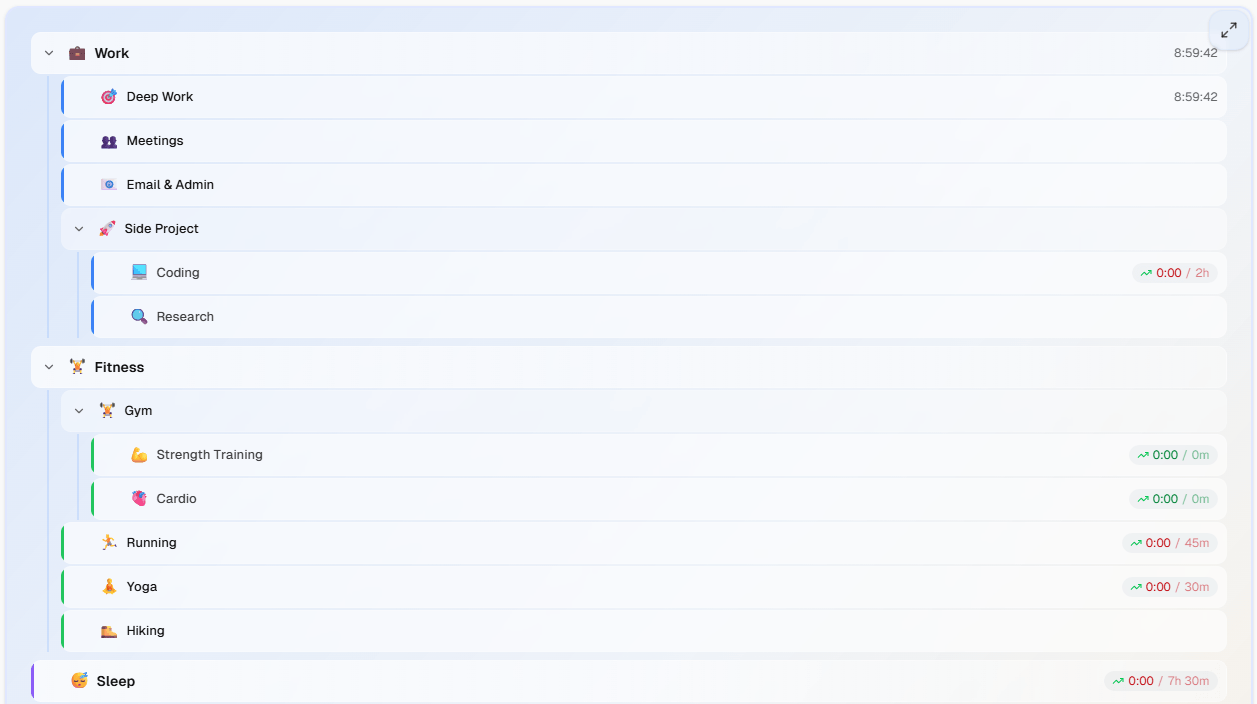
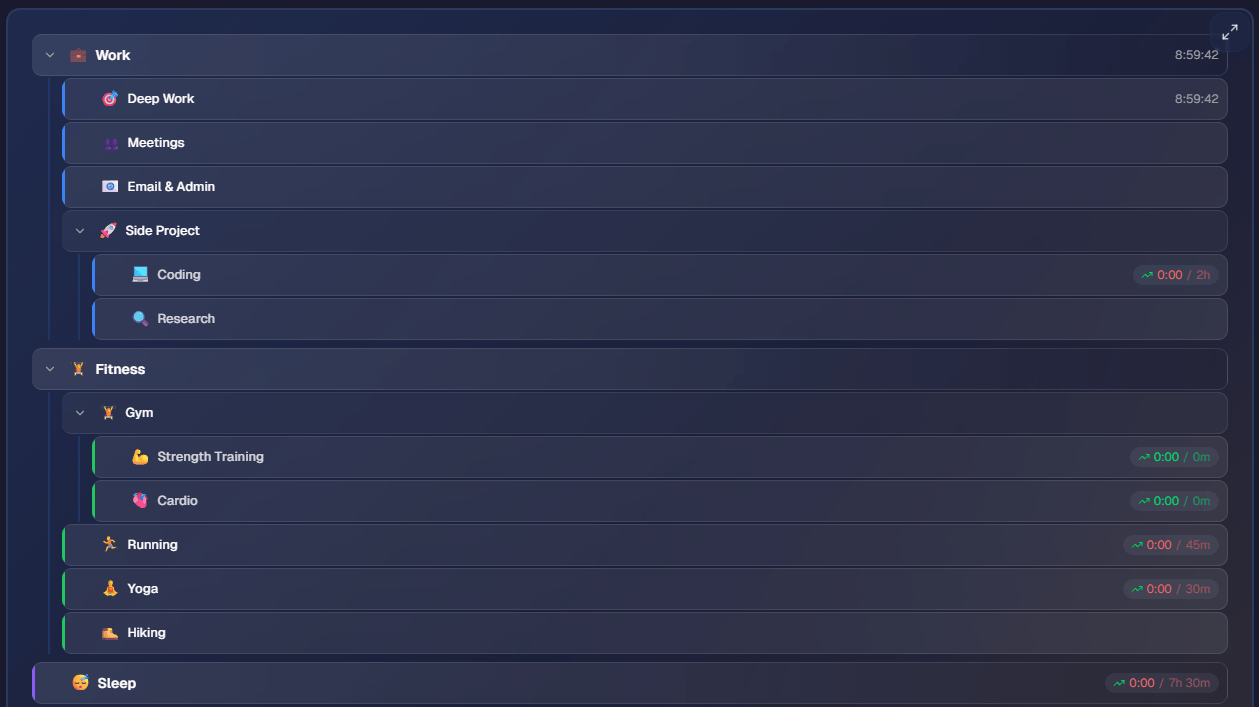
"Fitness" is a container — it organizes everything underneath but you don't track time on it directly. When you hit the gym, you start the timer on "Strength Training" or "Cardio" specifically.
The magic happens in statistics: time automatically rolls up the tree. Track 45 minutes of Strength Training and 20 minutes of Cardio, and your "Gym" total shows 1h 5min. Your "Fitness" total shows everything — gym, running, yoga, all of it — without you doing any math.
Example: How to Organize Activities With Categories and Sub-Activities
Let's build a realistic hierarchy for someone who wants to balance work, health, and personal growth:
💼 Work
├── Deep Work (goal: 20h/week)
├── Meetings
├── Email & Admin
└── Side Project
    ├── Coding (goal: 3h/week)
    └── Research

🏋️ Fitness
├── Gym
│   ├── Strength (goal: 2h/week)
│   └── Cardio (goal: 1h/week)
├── Running (goal: 1.5h/week)
└── Yoga (goal: 1h/week)

📚 Learning
├── Reading (goal: 30min/day)
├── Online Course
└── Language Practice (goal: 20min/day)
Notice a few things:
Goals at every level. You can set a goal on "Strength Training" (2 hours per week) and independently on "Reading" (30 minutes per day). Goals are flexible — daily, weekly, or monthly — and they work on any activity that you track time on.
Mix of containers and trackable activities. "Work" and "Fitness" are organizational containers. "Deep Work" and "Strength" are trackable. You decide what makes sense at each level.
Real structure, not forced simplicity. Your side project has coding and research as separate activities because they feel different and you want to see how your time splits. But "Meetings" doesn't need sub-activities — one level is enough.
Setting Time Goals for Categories and Sub-Activities
The real power of nested activities comes alive when you combine them with goals. Learn more about how to set time goals that actually work. Here's how to think about it:
Specific Goals for Specific Habits
Set goals on the activities you actually track:
- Strength Training: 2 hours/week — because you know exactly how much gym time builds muscle
- Reading: 30 minutes/day — a daily habit you want to maintain
- Deep Work: 20 hours/week — your core work productivity metric
These goals show up on your daily and weekly views with clear progress indicators. Did you hit 30 minutes of reading today? A quick glance tells you.
Using Statistics to See the Big Picture
While goals track your commitments, the Statistics page shows the full picture across your hierarchy. Switch to tree view, and you'll see:
- Fitness total: 7h 30min this week
- Gym: 3h 15min
- Strength: 2h 10min ✓
- Cardio: 1h 05min ✓
- Running: 1h 45min ✓
- Yoga: 1h 00min ✓
- Gym: 3h 15min
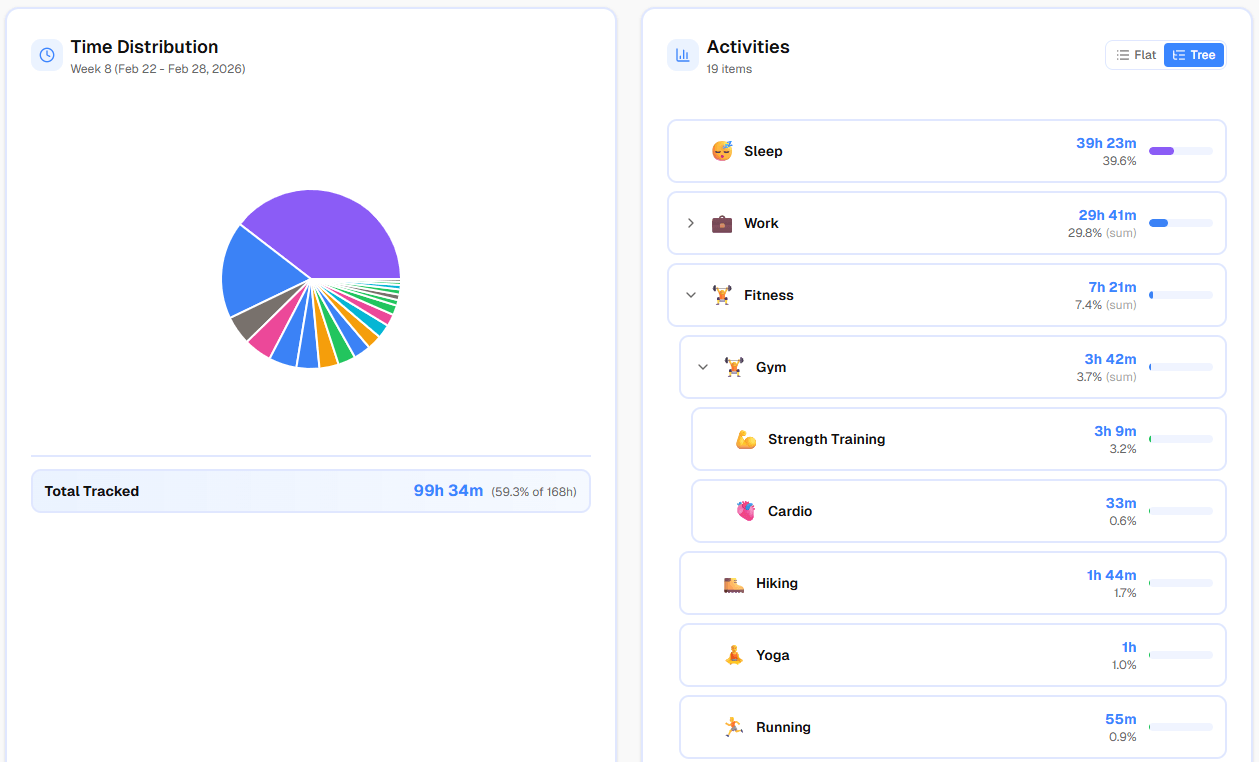
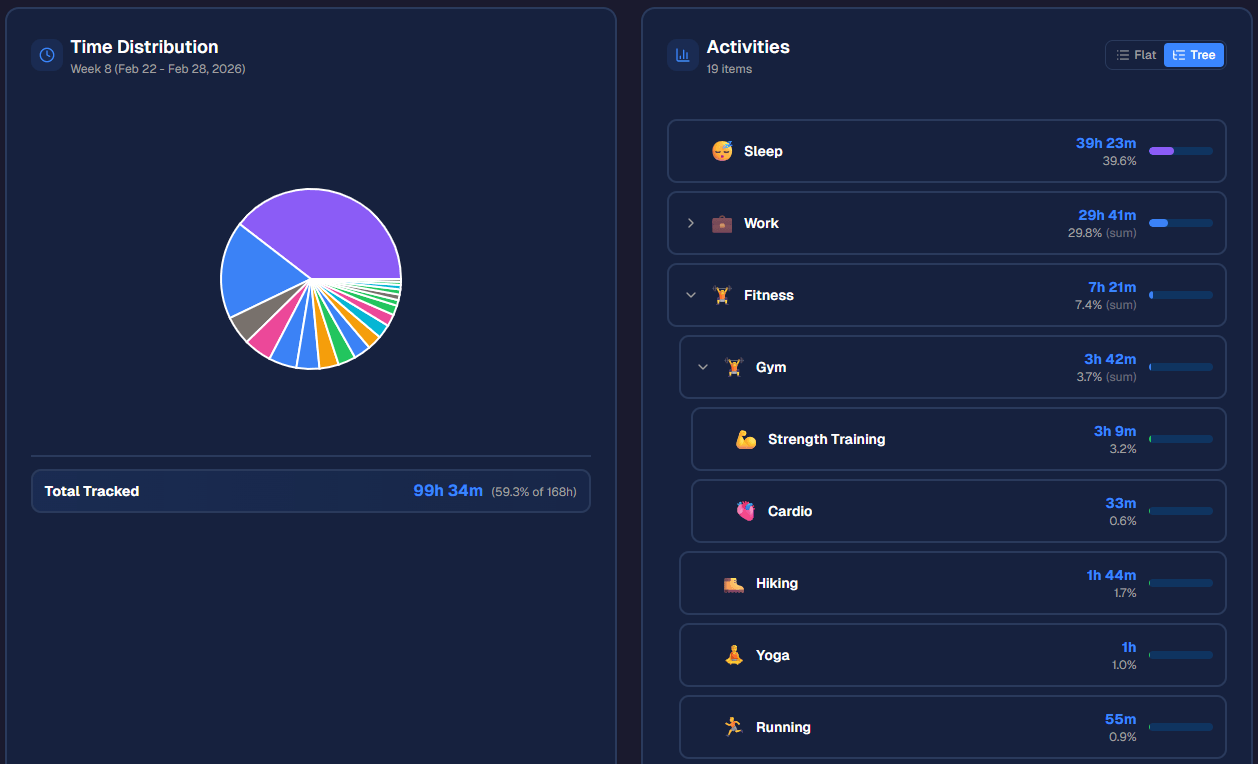
You instantly know: "I'm hitting all my fitness goals, and fitness overall gets about 7.5 hours of my week." No spreadsheets. No manual addition. The tree does the math.
Easy Tracking Despite a Detailed Category Structure
"But won't it be annoying to find 'Strength Training' buried three levels deep every time I go to the gym?"
No. And here's why.
Multiple Views for Different Moments
Timetracker.live offers four ways to browse your activities:
- Tiles — your most-used activities as big, tappable cards. Pin "Strength Training" and "Deep Work" to the top. One tap to start.
- Tree — the full hierarchy with collapsible sections. Perfect when you need to find something specific. Parents collapse so you only see what's relevant.
- By Category — activities grouped into categories (Work, Health, etc.). Great when you think in terms of "what part of life am I about to spend time on?"
- Alphabetical — a simple A-Z list when you know exactly what you're looking for.
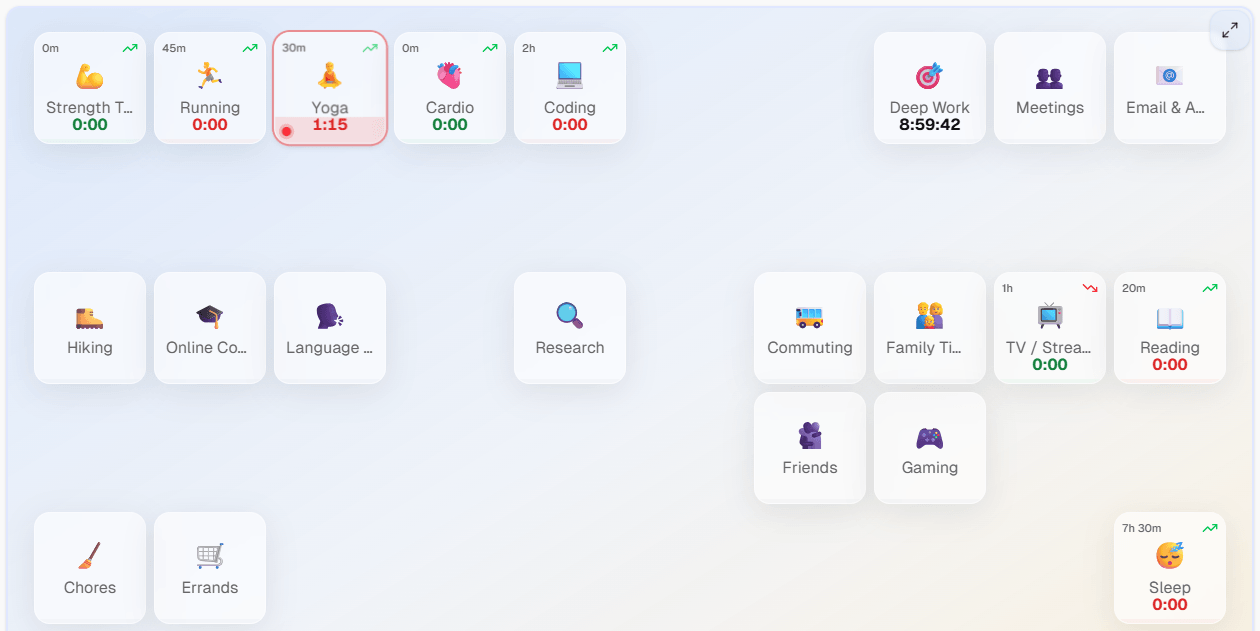
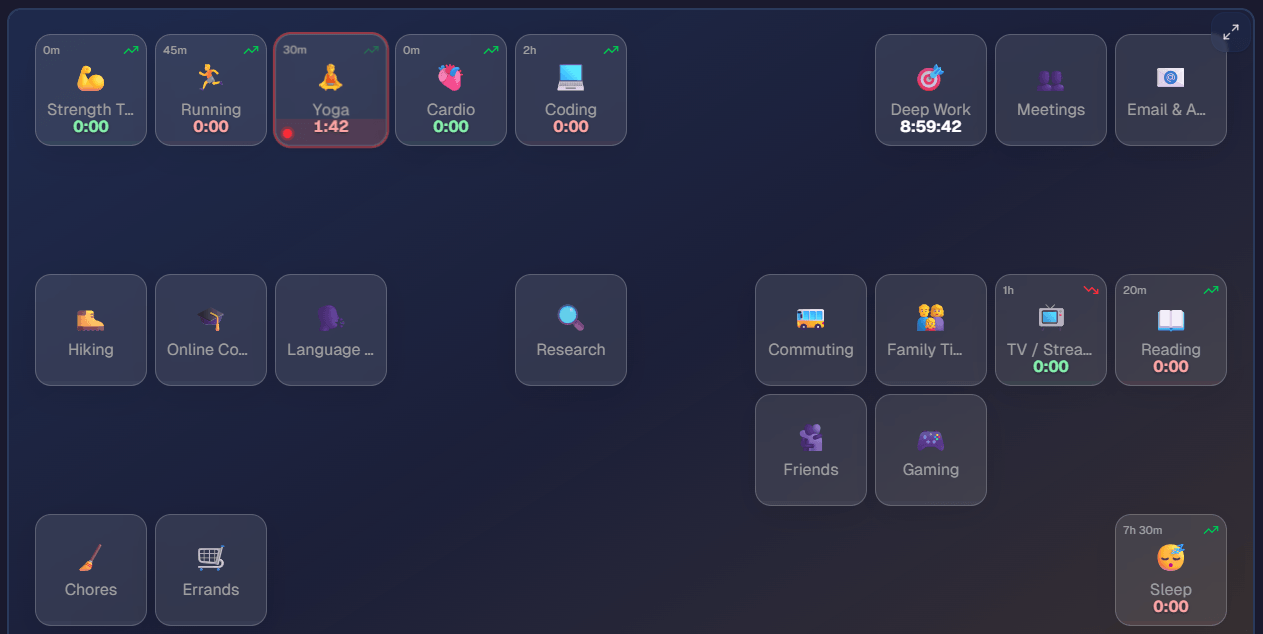
Most people use Tiles 90% of the time. You pin your 5-8 most frequent activities, and starting a timer is literally one tap. The complex hierarchy exists for organization and analysis — it stays out of your way during tracking.
Switching Is Instant
Finished Strength Training, moving to Cardio? Tap "Cardio" — the timer switches automatically. No need to stop the current timer, navigate menus, and start a new one. One tap.
Why Organizing Activities in a Hierarchy Matters
The hierarchy isn't about complexity for its own sake. It's about matching your tracking system to how your life actually works, so you get better data without more effort.
With a flat list, you're always compromising — either too vague to be useful, or too detailed to be practical. With nested activities, you get both: simple tracking and rich analysis.
After a month of tracking all 24 hours with a well-structured hierarchy, you'll know:
- Exactly how many hours go to each category of your life
- Whether you're hitting specific goals (2h strength, 30min reading)
- How time distributes within each category (is your "Work" mostly meetings or deep focus?)
- Where time silently leaks away
And you'll have gotten all of this by tapping a single button each time you switch activities.
How to Set Up Your Activity Categories in 5 Minutes
Here's how to set up your hierarchy in under 5 minutes:
- List your categories (3-5 is plenty): Work, Health, Learning, Social, Leisure — if you want a deeper approach, see our guide on how to track your whole life, not just work
- Under each category, list your main activities. Don't overthink it — you can always restructure later.
- Add sub-activities only where it matters. If "Gym" means different things on different days, break it down. If "Reading" is just reading, leave it flat.
- Set goals on the activities you care about most. Start with 2-3 goals. You can always add more.
- Pin your most common activities to Tiles. This is your daily tracking dashboard.
The beauty of the system: you can start simple and add depth over time. A flat list today can become a rich hierarchy next month, and all your historical data still makes sense.
Ready to organize your time tracking? Create a free account and build your first activity tree. It takes less than 5 minutes — and it'll change how you see your time.
Related articles
How to Do a Time Audit You'll Actually Finish
Most time audits die on day three, killed by the alarm-and-notebook method. Here's a two-week version that survives contact with a real life, plus the categories to use and what to look for at the end.
I Used Toggl for Two Years to Track My Life. Here's Why I Stopped.
Toggl is the best work time tracker on the market. It's also the wrong tool for tracking your life. Here's what I learned after two years of trying to force it.