You Don't Need a Second App for Pomodoro
If you already have a time tracker running, why are you opening a second app for your pomodoro? Here's what integration looks like — and why it matters.
Here's a workflow almost every knowledge worker who uses both time tracking and the Pomodoro Technique has fallen into:
- Open your time tracker. Start the "Deep work" activity.
- Open a second app — Forest, Pomofocus, Focus Keeper, whatever — and start a 25-minute countdown.
- Focus. Wait for the bell.
- Pause the pomodoro app. Switch your time tracker to "Rest" or "Break." Start a 5-minute timer somewhere.
- Take the break. Watch the other timer. Remember it's running.
- When the break ends, switch the time tracker back to "Deep work." Start the next pomodoro. Hope you got the boundaries right.
- Repeat six more times.
By the end of a focused morning, you've interacted with two different apps roughly 20 times. Half of "using pomodoro" turns out to be juggling apps.
It's a dumb problem with a simple fix: don't run two apps for the same thing. Your time tracker already has everything a pomodoro timer needs — the activity list, the switching, the history. It just needs a countdown and a rule for what to do when the bell rings. That's a feature, not a separate product.
The Two-App Tax
When you run a dedicated pomodoro app alongside a time tracker, you pay a small tax every single session. Individually, each cost is trivial. Together, they're the reason most people quit pomodoro after a week.
The switching tax. Every transition between focus and break means touching two apps: stop one, start the other, remember not to forget the second one. Four pomodoros a day means eight dual-app switches. Your attention bleeds out on housekeeping.
The boundary tax. If you forgot to switch one of the apps, your data is wrong. You'll notice at the end of the day that your time tracker shows 3 hours of "Deep work" when you actually did 2 hours of work and one hour of breaks. Fixing it requires guessing.
The doubled cognitive load. Every time you want to focus, the question isn't just "what am I working on?" It's "what am I working on, and what's my break activity, and is the pomodoro app open, and did I start the timer, and is the tracker pointed at the right thing?"
The data-split tax. Your time tracker has "hours worked on the migration project." Your pomodoro app has "14 pomodoros completed." These numbers are supposed to describe the same work, but they live in different places and never quite agree.
None of this is the fault of the pomodoro apps. They're fine countdown timers. The problem is that a countdown timer alone isn't a complete workflow for someone who's already tracking time. The two tools need to be one tool.
What Integration Actually Looks Like
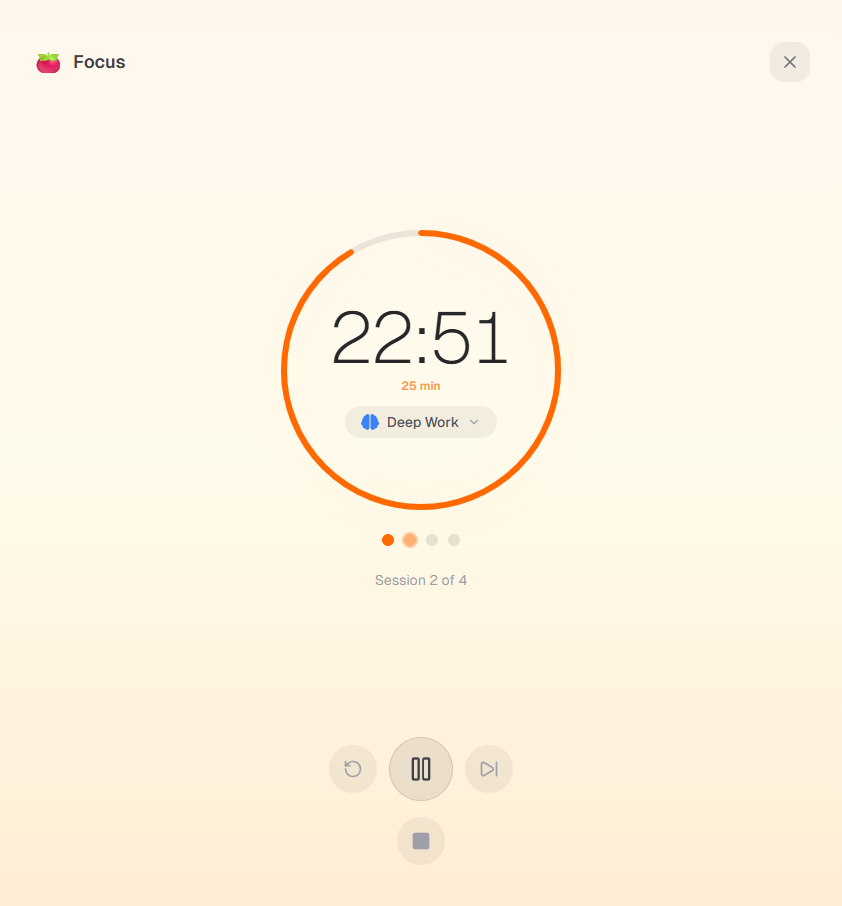
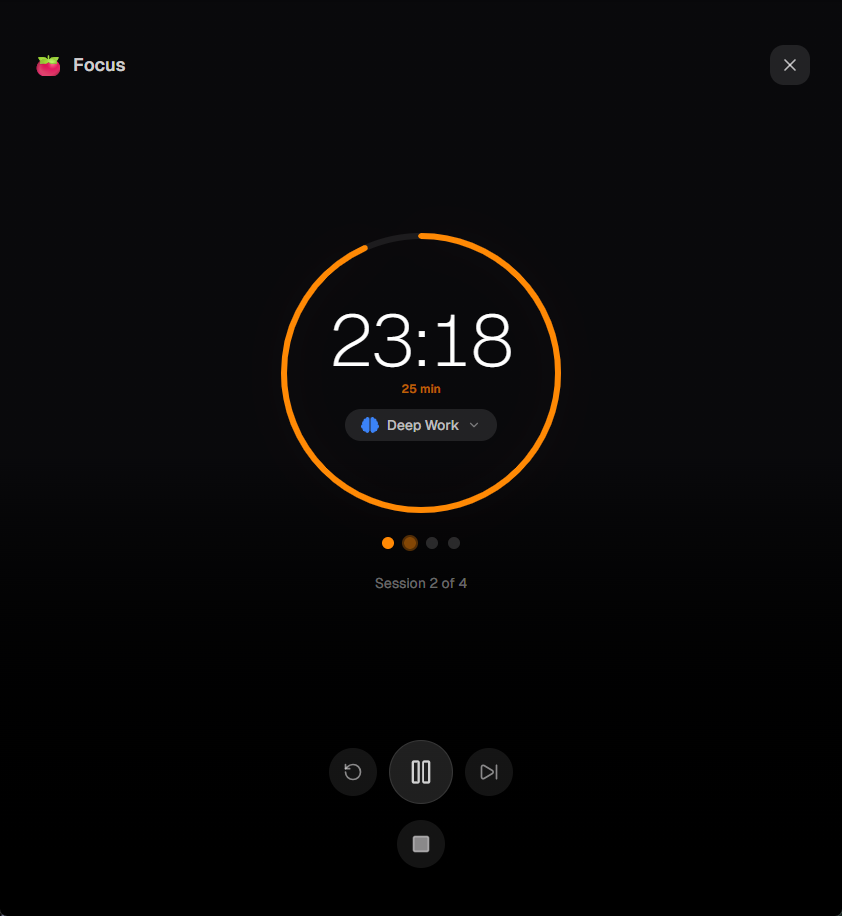
Here's what the same workflow looks like when the pomodoro lives inside your time tracker:
- Open the time tracker. Tap "Deep work." Hit focus.
- Focus for 25 minutes. When the bell rings, the timer automatically switches to your break activity ("Rest"). You don't touch anything.
- Take the break. When the break ends, the timer automatically switches back to "Deep work" and the next pomodoro starts. You still haven't touched anything.
- Repeat. At the end of the session, check your history — it already shows the breakdown.
One app. One activity list. One history. One thing to remember to stop. The dual-app churn is gone.
This is what Timetracker's pomodoro feature does. It's not a standalone pomodoro app — it's a pomodoro built directly inside the time tracker. The focus countdown, the break countdown, and the activity switching are all the same feature. You use one tool instead of two.
The Auto-Switch Advantage
The piece that matters most in an integrated workflow isn't the countdown itself — every pomodoro app has a decent countdown. It's the automatic activity switching.
When your focus session ends, a standalone pomodoro app rings a bell and waits. You now have a 5-minute window to manually pause your time tracker, find your "Rest" activity, switch to it, and come back to the pomodoro. Most people skip half those steps. The result is tracked time that's either too much focus (if you forgot to switch to rest) or full of gaps (if you stopped the tracker and forgot to restart it).
When the pomodoro is inside the tracker, the switch is automatic. Bell rings → the active entry moves to your break activity. Break ends → it moves back to the focus activity. Every second is accounted for, because the app never stops tracking something. You get a clean timeline without doing any of the work.
This matters because the whole point of tracking time is honest data. If your tracker shows "5 hours of deep work" but actually 45 minutes of that was break time that never got logged as a break, your weekly goals are lying to you. Integrated pomodoros fix this at the source: there's no moment where the tracker stops knowing what you're doing.
Setting It Up
If you've used any time tracker before, setup is about two minutes. Here's the path in Timetracker.
1. Pick an activity to focus on
Open the app and go to your activity list. Pick one of your existing work activities — "Deep work," "Writing," "Code review," "Study session," whatever you usually spend focused time on. If you don't have a good one, make one. Keep it broad. Pomodoros work best on activities you can do for 25 minutes straight without context-switching.
2. Pick a break activity
This is the small trick that ties the whole thing together. You need an activity that represents your breaks. "Rest" is the obvious one, but "Stretching," "Walk," or "Hydration" all work. Make it something that's genuinely part of your day — you're going to be logging real minutes to it, and those minutes should mean something.
In Timetracker, you set your default break activity once in the pomodoro settings. From then on, every break automatically switches to it. You don't pick it again each time.
3. Configure the intervals
Classic 25/5/15 — 25 minutes of focus, 5 minute short break, 15 minute long break after four focus sessions — is a reasonable starting point. But it's not sacred. Common alternatives:
- 50/10 — longer focus, longer break. Useful for deep technical work where 25 minutes barely gets you warmed up.
- 90/20 — one ultradian cycle. Close to the natural attention rhythm most adults have.
- 15/3 — short and sharp. Useful for work you actively avoid starting, like email triage.
Pick one, try it for a week, adjust if the rhythm feels wrong. Timetracker lets you change all four values (focus duration, short break, long break, sessions-before-long-break) in settings.
4. Start a session
Tap your focus activity. Hit the pomodoro button. Walk away from your phone. The app does the rest — countdown, switch to break, switch back, next pomodoro — until you manually stop.
When you check your history, you'll see every focus session and every break as real time entries, tied to the real activities you picked. Your weekly stats show exactly how much deep work you did and exactly how much rest you took. No second app, no reconciliation, no missing data.
What You Get That a Standalone App Can't Give You
Integration has a few secondary benefits that matter over weeks, not minutes.
Your pomodoros feed into your goals. If you set a weekly goal like "at least 10 hours of deep work," your pomodoro sessions count toward it automatically — because they're real time entries on the deep work activity. A standalone pomodoro app can tell you "you did 40 pomodoros this week" but can't tell you whether you hit your goal. Integration closes that gap.
Your breaks become real data too. Most people have no idea how much of their "focused" workday is actually breaks. When the pomodoro auto-switches to a break activity, those breaks accumulate in your history. After a few weeks, you'll see numbers like "2h 15m of Rest per workday" — and you can decide whether that's too much, too little, or about right. A pomodoro app throws that data away.
One source of truth. When someone asks "how much time did you spend on the migration last week?", you have one place to look. Not "let me check my tracker and also my pomodoro app and do some math."
Your category breakdown stays accurate. If your activities are organized into categories — Work, Health, Sleep, etc. — your integrated pomodoros feed into that balance correctly. A standalone pomodoro app has no idea your categories exist.
None of these are the headline. The headline is still "one app instead of two." The rest is gravy.
Common Mistakes
Keeping both apps installed for "backup." You don't need a backup. Either your time tracker has a pomodoro and you use it, or it doesn't and you use a standalone app — pick one. Running both is how you ended up juggling apps in the first place.
Treating every chunk of focused work as a pomodoro. Pomodoros are for work where the problem is starting, not where the problem is finishing. If you're in flow on something creative and the bell rings, ignore it or extend the session. Pomodoros are a tool for beating procrastination, not an obligation.
Picking a too-short break activity. If your break activity is "Scrolling social media," your breaks will quietly expand past 5 minutes every time, your tracked data will look like you took 15-minute breaks, and you'll blame the app. Pick a break activity that has a natural stopping point — stretching, walking, drinking water.
Ignoring the data afterwards. The integration only pays off if you actually look at your weekly and monthly breakdowns. Five minutes every Sunday is enough. Without the review step, you're just using a slightly less annoying countdown timer.
The Simpler Default
The whole pitch for the integrated pomodoro comes down to one observation: if you were starting from scratch, nobody would design a workflow that requires two apps for one focus session. The two-app world is an accident of how the tools grew up separately — pomodoro apps on one track, time trackers on another.
There's no reason they have to stay separate. A time tracker already knows what activity you're on. Adding a countdown and an auto-switch rule is a small feature. Once you use it, going back to juggling two apps feels absurd — like carrying a watch and a stopwatch when one device could do both.
If you're already tracking time, your next pomodoro shouldn't require opening a second app. Create a free Timetracker account and start your first integrated focus session. You won't need the other one anymore.
Learn more about the pomodoro timer in Timetracker or jump straight into your first session.
Related articles
How to Do a Time Audit You'll Actually Finish
Most time audits die on day three, killed by the alarm-and-notebook method. Here's a two-week version that survives contact with a real life, plus the categories to use and what to look for at the end.
I Used Toggl for Two Years to Track My Life. Here's Why I Stopped.
Toggl is the best work time tracker on the market. It's also the wrong tool for tracking your life. Here's what I learned after two years of trying to force it.