Free time tracker for Windows
A native Windows time tracker for Windows 10 and 11 that covers all 24 hours of your day: work, sleep, health, hobbies, and family, not just billable hours. No ads, no per-user pricing, free to use.
Windows 10 or later · 64-bit · ~5 MB · No account required to download
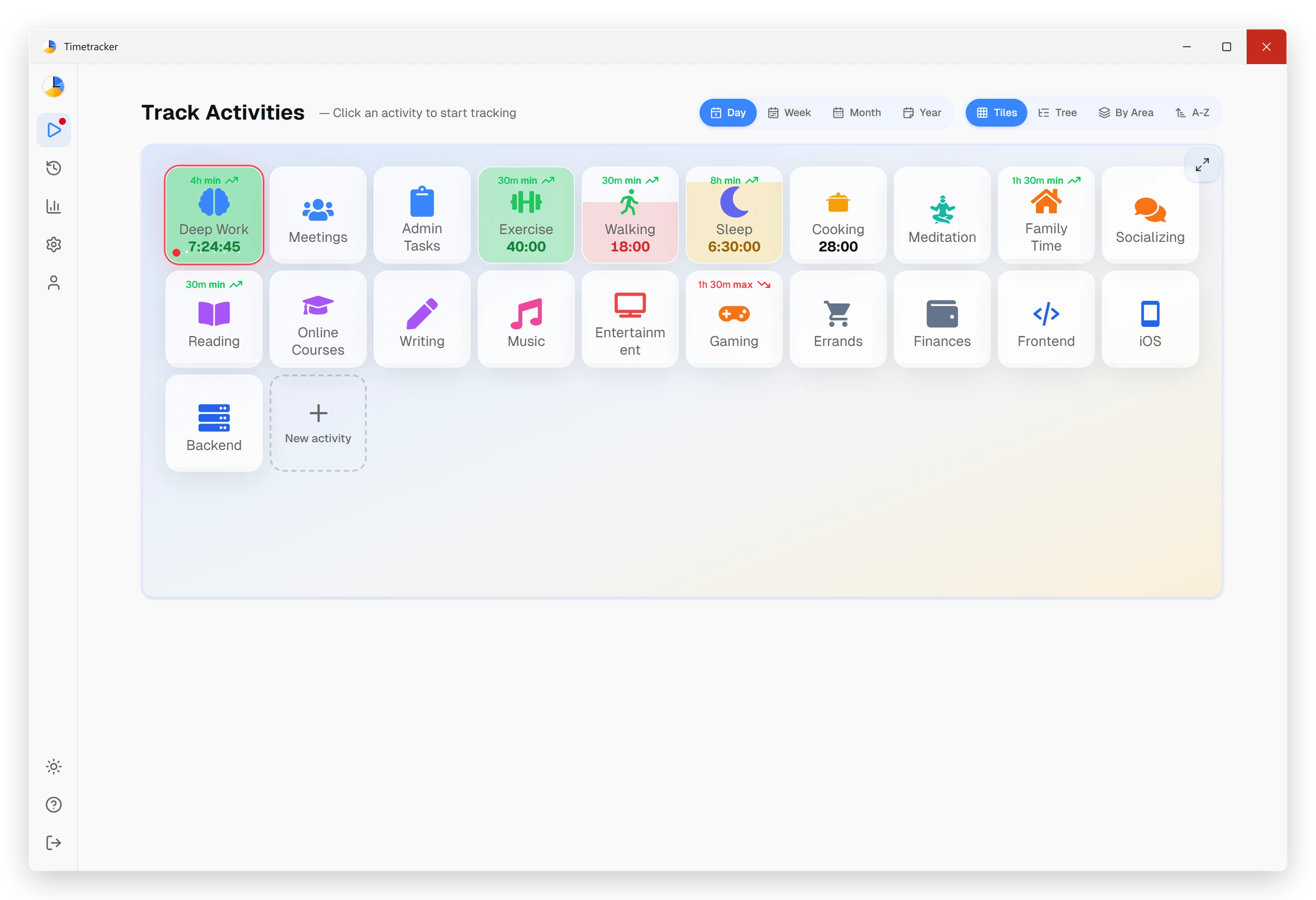
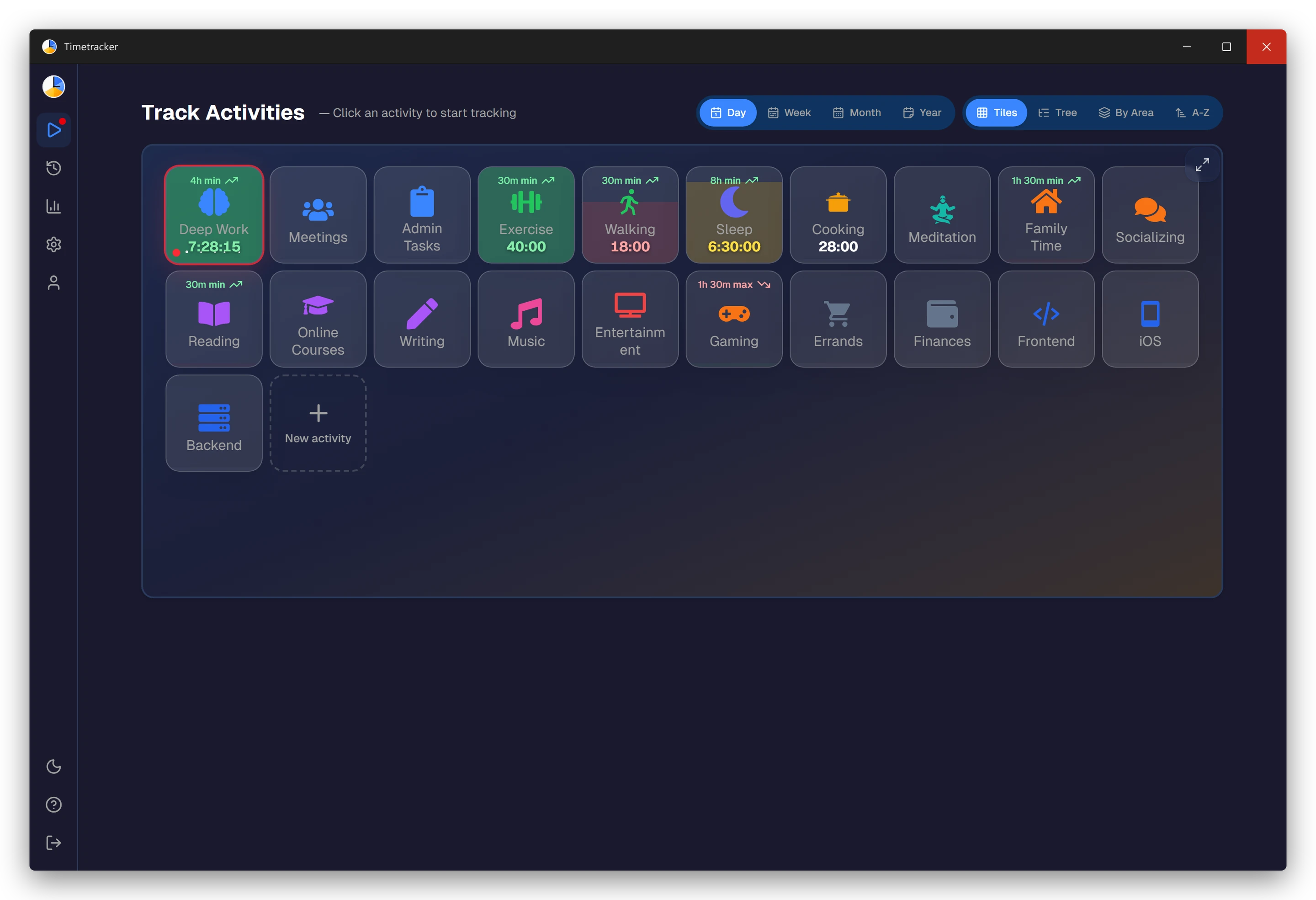
Why a desktop app?
You can use Timetracker in your browser, but a native Windows app has real advantages for people who spend most of their day at a computer.
Starts with Windows
Launches at startup and lives in your system tray. No browser tab to manage or accidentally close: your timer keeps running quietly in the background all day.
One click in the tray
Click the tray icon to switch activities instantly, without searching through a stack of browser tabs. The tracker is always one click from wherever you are in Windows.
Under 5 MB
Built with Tauri instead of Electron, so the install is under 5 MB and barely registers in Task Manager. It won't slow your machine down or drain a laptop battery.
Everything you need to track your time
Track every hour, not just work
Toggl and Clockify stop at billable time. The Timetracker Windows app logs your whole day (focused work, breaks, sleep, exercise, hobbies, and family) so nothing disappears unaccounted for.
Categories
Sort activities into categories like Work, Health, Family, and Learning. One glance at the week shows whether you're balanced or running hot on a single category.
Goals & budgets
Put a daily or weekly time budget on anything (deep work, gym, reading) and Timetracker tracks how close you are without nagging you.
Statistics & insights
Daily, weekly, and monthly charts surface where your time really goes: the weeks overtime crept in, and the habits that quietly slipped.
Lives in the system tray
A native Windows app that starts with Windows and waits in your system tray. Switch activities without alt-tabbing through a stack of browser windows.
Syncs to phone & web
Track at your desk, check stats on your phone during the commute. One account keeps Windows, Android, iPhone, and the web app in sync.
How it works
1. Set up your categories
Create 5–7 categories like Work, Health, Sleep, and Hobbies and add a few activities under each. Two minutes after install and you're tracking.
2. Track from the tray
Click an activity to start the timer. Switch to something else and the previous one stops automatically: start and stop straight from the system tray.
3. See where time goes
Open the daily, weekly, and monthly breakdowns to see exactly how your hours split across work, health, family, and everything else.
A lightweight time tracker built for Windows
Timetracker is a native Windows time tracker built with Tauri, not Electron: the whole app is under 5 MB and barely registers in Task Manager. It runs on Windows 10 and Windows 11 (64-bit), starts automatically with Windows, and tucks itself into the system tray so a running timer is always one click away.
Two installers are available. The EXE (NSIS) installer is the right choice for most people: it installs for your user account and updates itself automatically. The MSI installer is meant for IT administrators who deploy software across many machines through group policy or tools like Intune and SCCM. Prefer the Microsoft Store? Timetracker is there too, with one-click install and Store-managed updates.
Unlike work-focused Windows time trackers built for billing clients, Timetracker is designed to capture your entire day. Track a two-hour deep-work block, then the gym, then dinner with family (all in the same app) and see at the end of the week whether your time actually matched your priorities.
Frequently asked questions
Is Timetracker for Windows really free?
Yes. Everything in the app today is free — no ads, no per-user pricing. Every current feature is available from day one.
What versions of Windows are supported?
Timetracker runs on Windows 10 and Windows 11 (64-bit). Both EXE and MSI installers are available.
Does it sync with my phone?
Yes. Your data syncs across all devices — Windows, Android, iPhone, and the web app. Start a timer on your desktop, switch it from your phone.
What's the difference between the EXE and MSI installer?
The EXE installer is for personal use — it installs for the current user and updates automatically. The MSI installer is for IT administrators who need to deploy across multiple machines via group policy.
Can I track more than just work hours?
That's what Timetracker is designed for. Unlike most time trackers that focus on billable hours, Timetracker covers your entire day — work, sleep, exercise, hobbies, family time, and everything in between.
Is my data private?
Your data is stored securely and is only accessible to you. We don't sell data, show ads, or share your information with third parties.
Can I use it without installing anything?
Yes — the web app at timetracker.live works in any browser. The Windows desktop app is optional, for people who prefer a native experience without keeping a browser tab open.
Also see: built-in pomodoro timer, vs Toggl, vs Clockify, or read the blog.
Start tracking your time today
Free to use. No ads. No time limits.
Create Free Account Download for WindowsAvailable on Android, iOS, Windows, Mac, Linux and Web