Ask Claude or ChatGPT where your time went
Connect Timetracker to your AI assistant. Ask about your week, start and stop timers, and fix mistakes in plain language, without opening the app.
Part of Timetracker Premium, free for the first week.
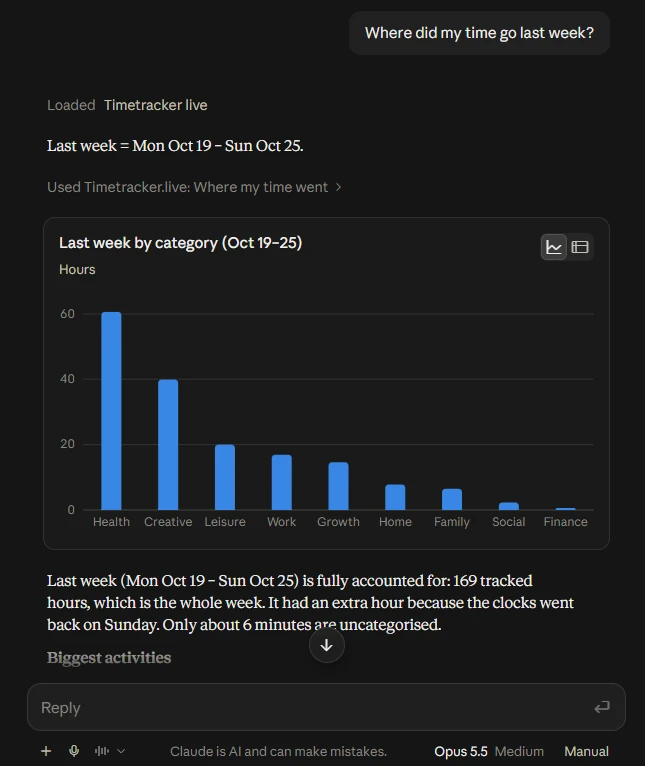
Talk to your time
You already tell an assistant about your day. Now it can look at the real numbers and fix them.
Ask about your time
Where did last week go? How are you doing on your goals compared with last month? The assistant reads your tracked time and answers from it.
Change it by talking
Start a timer, record something you forgot to track, divide one stretch in two, correct a mistake, or move a batch of entries to a new activity.
You stay in control
The assistant never sees your password, your email address or your payment details. You can withdraw its access in Settings at any time.
Things to ask
Plain sentences, no commands to learn.
- Where did my time go last week?
- Try to find the main trends in how I have spent my time over the last three months
- How am I doing on my goals this month compared with last month?
- Start Work
- Find all Work entries tagged Marketing and move them to a new activity called Marketing
- Find every gap longer than 10 minutes last week and record it as Other
- Suggest how to reorganise my categories so I can see better where my time goes
How it works
1. Start your free week
Create a free account and open Settings, then API. Premium is free for the first week. Copy the address shown there.
2. Add it to your assistant
In Claude, add a custom connector and paste the address. In ChatGPT, add a custom MCP server. Both are below.
3. Ask
Open a chat and ask about your time. Approve the connection once, on the Timetracker page that opens.
Connect it
The address is the same for every assistant. It is also on your Settings, API screen, with a button to copy it.
https://api.timetracker.live/api/mcp
Claude
Connecting works on every Claude plan, including the free one. Five steps, a minute in all.
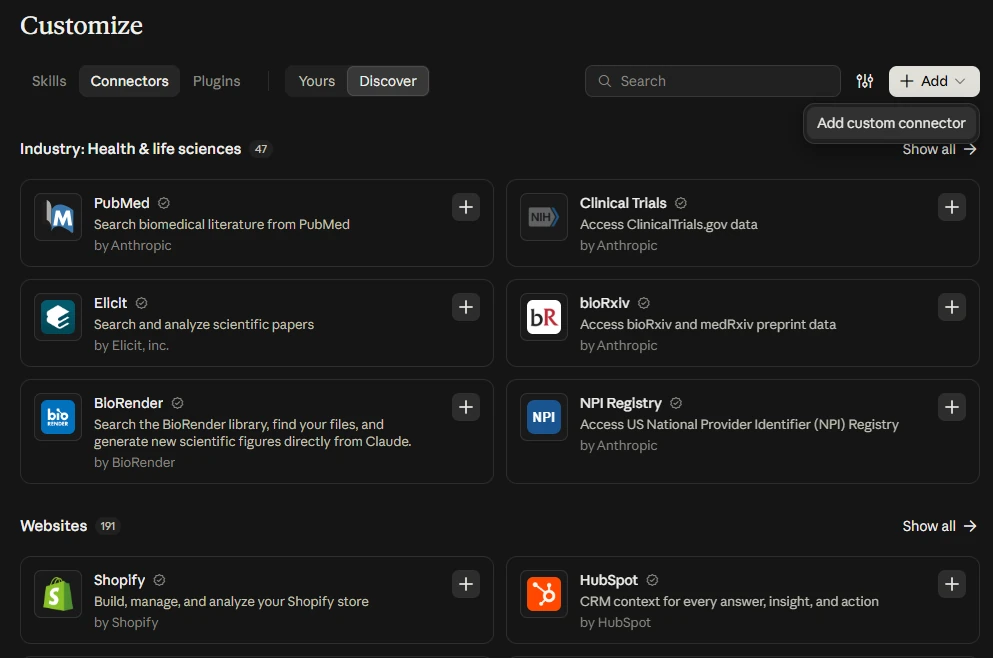
1. In Claude, open Customize, then Connectors. Press Add, then Add custom connector.
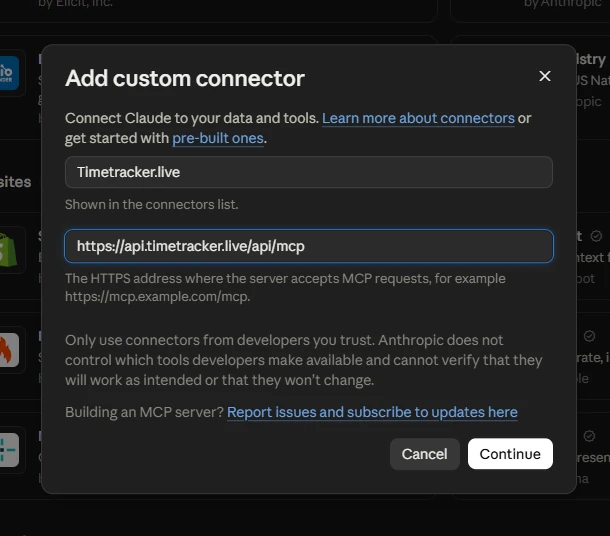
2. Name it Timetracker and paste the address https://api.timetracker.live/api/mcp. Press Continue.
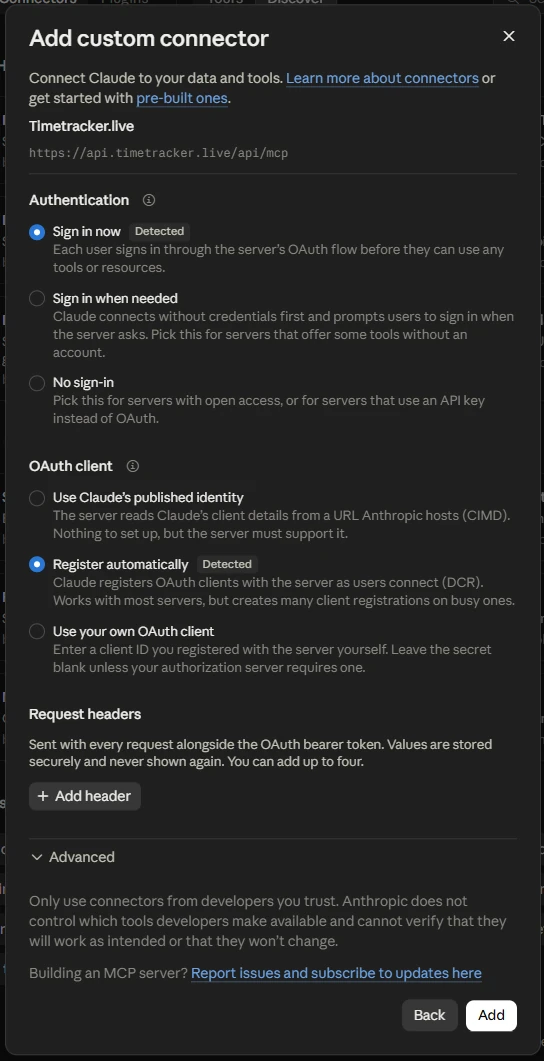
3. Claude detects how Timetracker signs people in. Leave the choices as they are and press Add.
4. Timetracker now appears in your connectors. Press Connect.
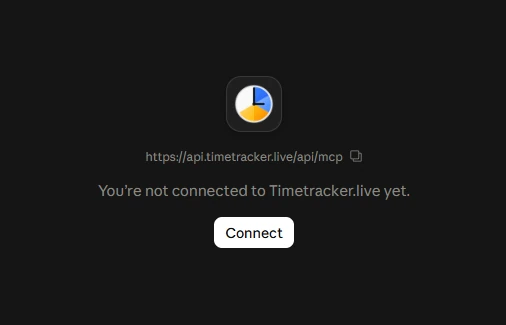
5. Timetracker's own page opens and lists what Claude would be able to do. Press Connect to approve.
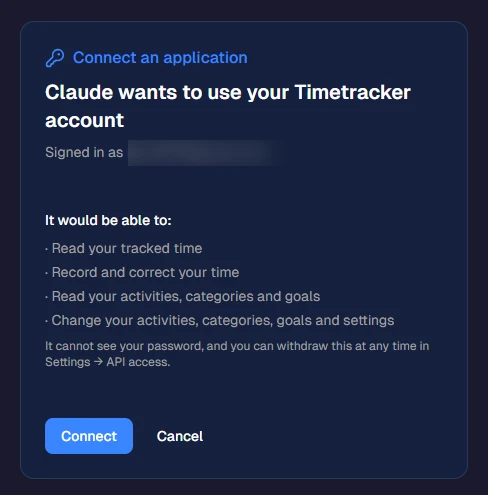
Then open a chat and ask. Claude shows which connector it used, and answers from your time.
ChatGPT
On the ChatGPT website or in its desktop app. Whether you can add your own server depends on your plan and, in a workspace, on what its admin allows.
1. Open Plugins at chatgpt.com/plugins, or in the ChatGPT desktop app. Press Add, then Add custom MCP server.
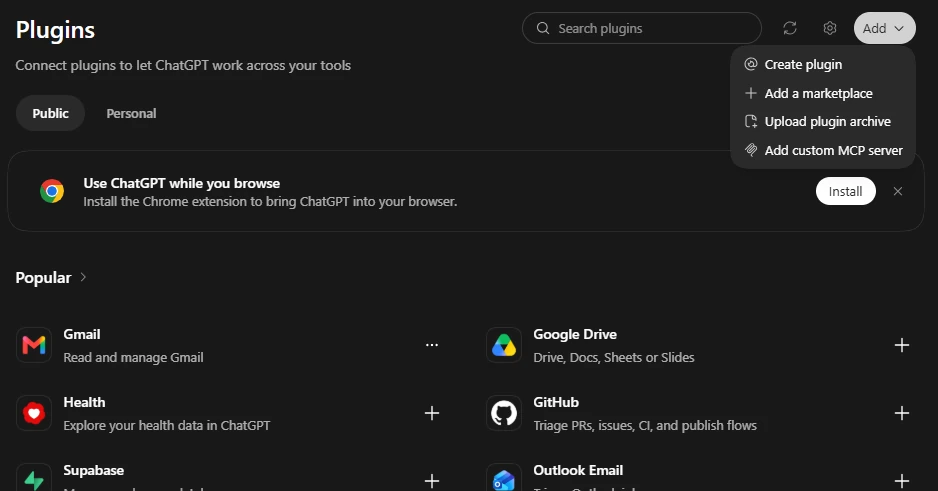
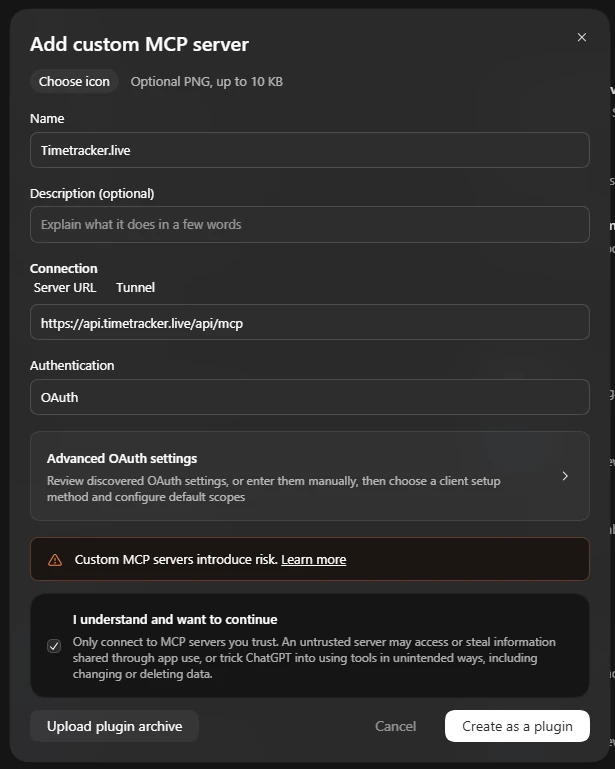
2. Name it Timetracker, choose Server URL and paste the address https://api.timetracker.live/api/mcp. Leave Authentication on OAuth, tick I understand and want to continue, and press Create as a plugin.
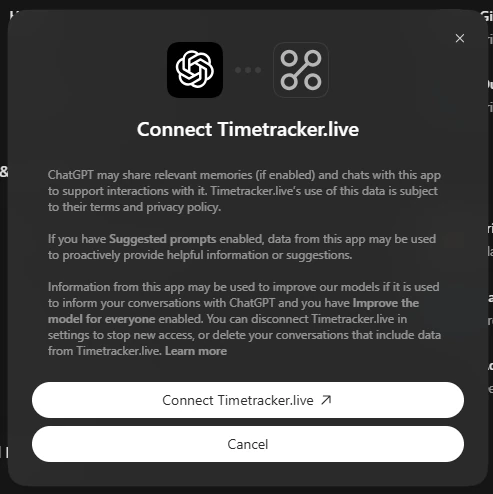
3. ChatGPT asks to connect to Timetracker. Press Connect.
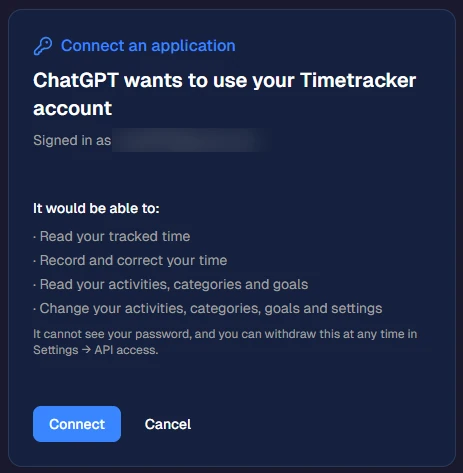
4. Timetracker's own page opens and lists what ChatGPT would be able to do. Press Connect to approve.
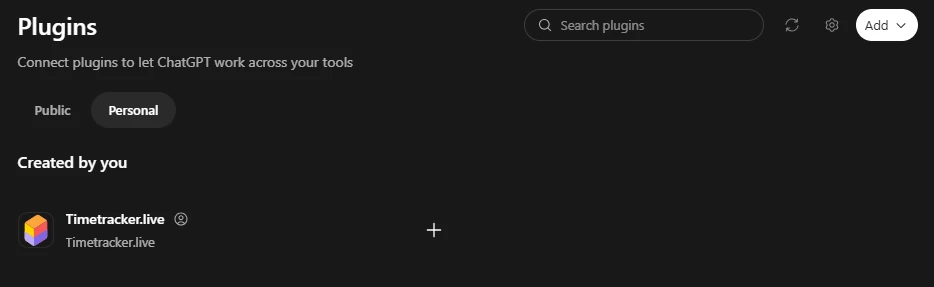
5. Timetracker now sits under Personal on the Plugins page. In a new chat, type @ and pick it, then ask your question.
OpenAI keeps rearranging these menus. If the words do not match what you see, look for custom MCP server or custom connector.
Any other application that supports remote MCP connectors takes the same address. Nothing is installed and no file is edited.
Frequently asked questions
What is MCP?
MCP is an open standard that lets an AI assistant use an app on your behalf. Timetracker runs an MCP server, so an assistant you connect can read and record your time.
Do I need Premium?
Yes. Access for AI assistants and the public API is part of Timetracker Premium, which you can try free for a week. Everything else in the app stays as it is.
Which assistants work?
Claude, ChatGPT, and any assistant that supports remote MCP connectors. Claude works on every plan. In ChatGPT you add it on the website or in the desktop app, and whether your plan allows a custom server is up to OpenAI.
What can the assistant do?
Read your tracked time and goals, start, stop and switch timers, record time you forgot, and correct, divide or remove entries. It can also create and rename activities, categories and tags.
Can it change or delete my entries?
Yes, if you ask it to, so read what it proposes before you agree. You can withdraw its access in Settings at any time.
Is it safe?
The assistant signs in through Timetracker's own page and never sees your password. It cannot reach your email address or your payment details.
Can I use the API instead?
Yes. The same Premium access includes a public API with personal access tokens, for your own scripts and dashboards. It is described at timetracker.live/time-tracking-api.
Also see: built-in pomodoro timer, vs Toggl, vs Clockify, or read the blog.