Best Free Desktop Time Tracker: Windows, Mac & Linux
Looking for a free time tracker for your desktop? Most apps only track work hours. Here's a native app for Windows, Mac, and Linux that tracks all 24 hours — work, sleep, exercise, and everything in between.
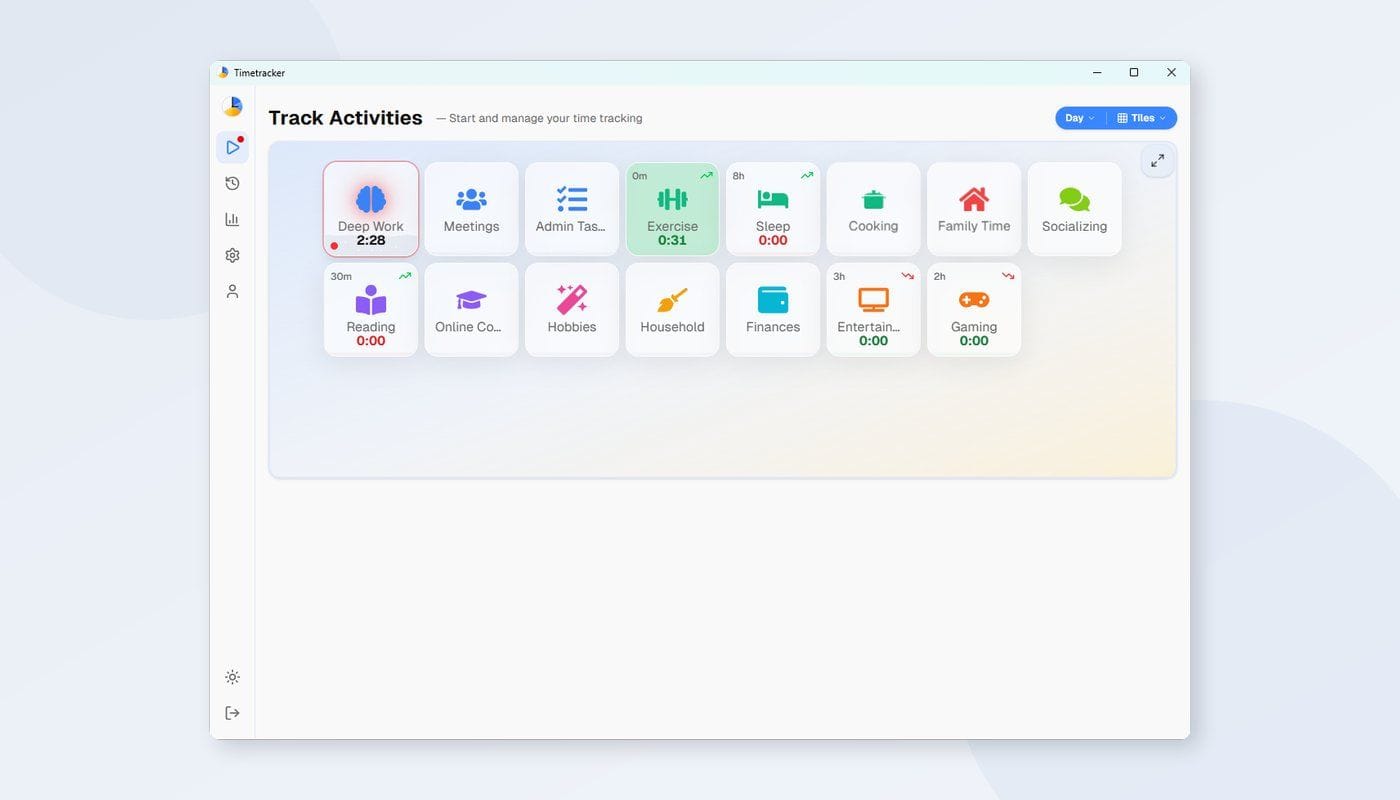
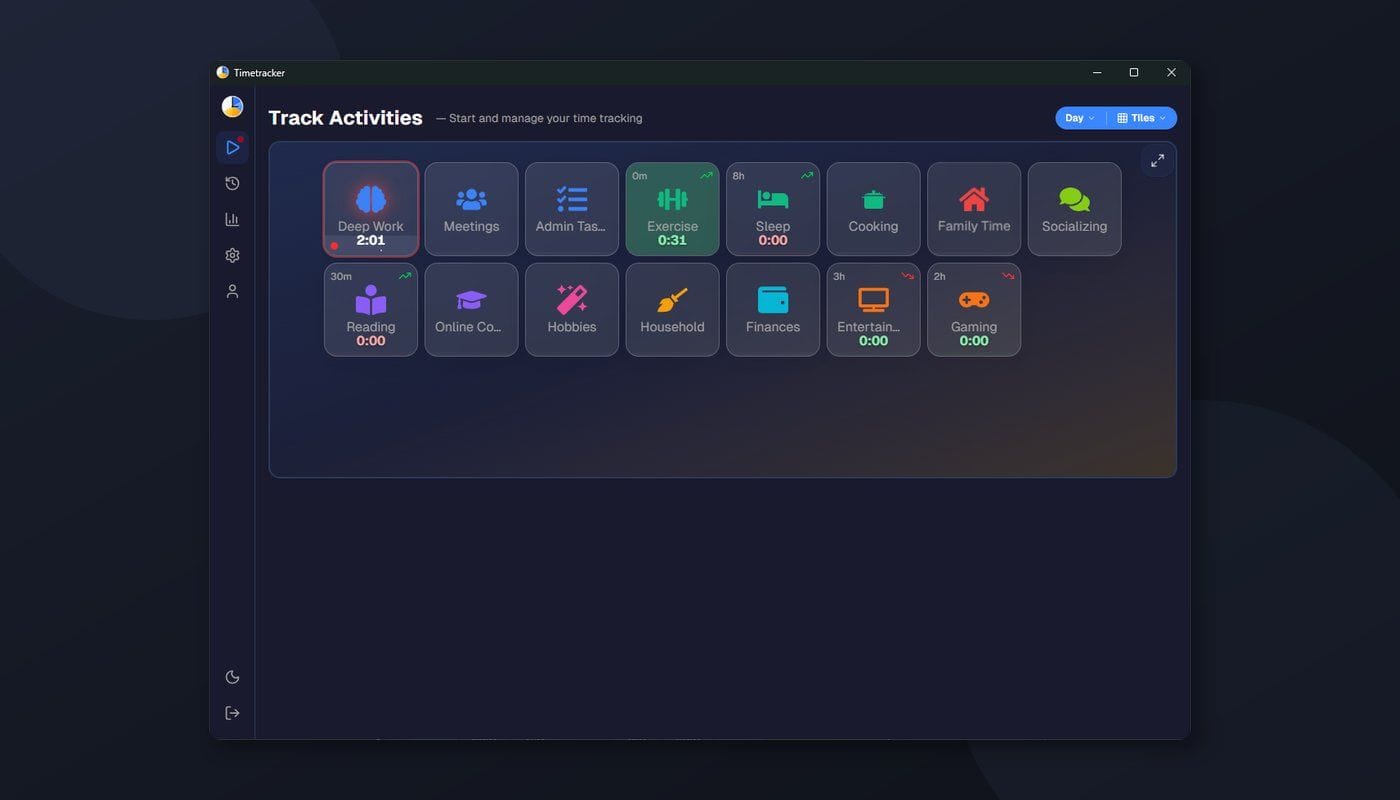
You're looking for a time tracker for your desktop. You search, and every result is the same: Toggl, Clockify, Harvest — tools built for freelancers billing clients. They track "projects" and "tasks" with start/stop timers, and they completely ignore the other 16 hours of your day.
But what if you don't want to track billable hours? What if you want to know where all your time goes — the work, the sleep, the exercise, the evenings, the weekends?
That's a different kind of time tracker. And most desktop apps don't do it.
What's Wrong With Most Desktop Time Trackers
The typical desktop time tracker is built for one scenario: you're a freelancer or remote worker who needs to log hours for a client. These tools are great at that. But they share the same limitations:
They only track work. When you stop the timer at 6 PM, the tool goes dark. It doesn't know (or care) that you spent 2 hours cooking, 1 hour exercising, and 3 hours watching TV. It can't tell you that you slept 6 hours instead of 8, or that your commute ate 90 minutes today.
They require manual start/stop. Forget to start the timer? You have a gap. Forget to stop it? Your "lunch break" shows as 4 hours of billable work. Most trackers expect you to babysit the timer, and when you don't, the data gets messy.
They're built for teams, not individuals. Features like team dashboards, approval workflows, and invoicing add complexity without helping someone who just wants to understand their own day. You end up ignoring 80% of the interface.
A Different Approach: Track All 24 Hours
Timetracker works differently. Instead of tracking "projects," you track your entire day as a continuous timeline — from waking up to going to bed, and the sleep in between.
The idea is simple: your day is always being spent on something. You're either working, sleeping, exercising, commuting, cooking, relaxing, or doing one of dozens of other things. A time tracker that only captures work gives you a partial picture. Tracking everything gives you the complete one.
Instead of organizing time into "projects" and "clients," Timetracker uses categories — broad categories that cover your whole life:
- Work — deep work, meetings, email, admin
- Health — exercise, cooking, medical
- Sleep — nighttime sleep, naps
- Learning — reading, courses, skill practice
- Social — family, friends, relationships
- Leisure — entertainment, hobbies, relaxation
- Maintenance — chores, commute, errands, hygiene
Under each category, you add specific activities. You can nest activities as deep as you need — "Work → Coding → Backend" if you want that level of detail, or just "Work → Coding" if you don't.
Why a Desktop App Instead of a Browser Tab
Timetracker works in any browser at timetracker.live. But if you spend most of your day at a computer, a native desktop app has real advantages:
It's always there. The app lives in your system tray (or menu bar on Mac), starting automatically with your OS. No browser tab to manage, no risk of accidentally closing it. When you switch activities, it's one click — the fastest possible interaction.
No tab competition. Browser-based trackers fight for attention with your other tabs. Tabs get closed, buried, or lost in a sea of other things. A system tray app doesn't have that problem.
It survives browser restarts. Close your browser to focus? Restart it after an update? Your timer keeps running. A browser tab would be gone.
Lightweight. Built with Tauri instead of Electron, the app is under 5 MB installed and uses a fraction of the memory. No Chromium instance running in the background, no battery drain on laptops.
And because everything syncs, you can start a timer on your desktop and switch it from your phone when you leave the house. One account works everywhere.
Available on Windows, Mac, and Linux
Timetracker has a native desktop app for every major operating system. Same features, same interface, same sync — just download the right one for your machine.
Windows
Download for Windows — available as EXE (personal use) or MSI (IT deployment). Runs on Windows 10 and 11, 64-bit. Under 5 MB. Sits in your system tray, starts with Windows.
Mac
Download for Mac — available on the Mac App Store. Works on both Intel and Apple Silicon (M1/M2/M3/M4) Macs. One-click install with automatic updates. Lives in your menu bar.
Linux
Download for Linux — available in the formats Linux users expect:
- AppImage — runs on any distro, no installation required. Download,
chmod +x, run. - .deb — for Debian, Ubuntu, Pop!_OS, Linux Mint, and derivatives.
- .rpm — for Fedora, openSUSE, CentOS/RHEL, and derivatives.
Works with any desktop environment that supports the system tray standard — GNOME (with AppIndicator extension), KDE Plasma, XFCE, Cinnamon, and others.
Why Tauri, Not Electron?
All three desktop apps are built with Tauri, which uses your system's native webview instead of bundling Chromium. The practical difference:
| Electron app | Timetracker (Tauri) | |
|---|---|---|
| Install size | 150-300 MB | ~5 MB |
| Idle RAM | 200-400 MB | 30-60 MB |
| Startup time | 2-5 seconds | Under 1 second |
For an app that runs all day in your tray, this matters. You don't want hundreds of megabytes of RAM dedicated to displaying a timer.
What You See After a Week
After tracking for a week, the statistics page shows you exactly where your time went. Not guesses — actual data.
Most people are surprised by at least one thing:
- The maintenance tax. Commuting, chores, getting ready, errands — these "invisible" activities often total 20-30 hours per week. A part-time job's worth of time you barely noticed.
- The leisure illusion. "I have no free time" is a common feeling. The data often shows 2-3 hours of daily leisure fragmented into phone scrolling, YouTube before bed — time that didn't register as "free time."
- The sleep gap. You say you sleep 7-8 hours. The data might show an average of 6.5, with big swings between weekdays and weekends.
- The goal gap. You say health is a priority. Your data shows 1 hour of exercise last week. The gap between intention and action is where the real insight lives.
These patterns only emerge when you track more than work hours. A work-only timer would never show you the maintenance tax or the sleep gap — because it simply doesn't capture that data.
Getting Started in 5 Minutes
-
Create a free account — email and password, or sign in with Google. No credit card.
-
Set up your categories — start with 5-7 that cover your whole day. Add 3-5 activities under each. Takes about 2 minutes.
-
Start tracking — click your current activity. When you switch to something else, click the new one. The previous timer stops automatically.
-
Check your stats — after a few days, look at your daily and weekly breakdowns. After a week, you'll have a clear picture of where your time actually goes.
No onboarding wizard, no tutorial videos. Just tracking.
Free to Use
Timetracker is free — no ads, no per-user pricing. You can track as many activities as you want, set goals for any of them, and use the app on as many devices as you like. Windows, Mac, Linux, Android, iPhone, web — everything syncs, everything's included.
Try It
If you've been searching for a desktop time tracker and all you've found are work-hour tools — give this a try. Download the app for Windows, Mac, or Linux, track one full day, and see if the data surprises you.
It probably will.
Related articles
How to Do a Time Audit You'll Actually Finish
Most time audits die on day three, killed by the alarm-and-notebook method. Here's a two-week version that survives contact with a real life, plus the categories to use and what to look for at the end.
I Used Toggl for Two Years to Track My Life. Here's Why I Stopped.
Toggl is the best work time tracker on the market. It's also the wrong tool for tracking your life. Here's what I learned after two years of trying to force it.